If you are building agents or tools for the Model Context Protocol (MCP), you eventually need to move beyond theory and run things locally. This guide covers how to set up, configure, and test a local MCP server.
The exact setup depends on the client you use (Claude Desktop, Cursor, etc.), but for this guide, I am using Antigravity.
To make this concrete, I’ve devised a mini-project called Unicon. It is a simple MCP server that stores text contexts categorized by tags and projects.
Imagine asking your IDE: “What was the context for the ‘auth-refactor’ tag?” and having it pull that data instantly from your local server. Or even better, from any app, storing the context that you have so that you can use it in another Agent interaction.
Step 1: Ensure Your Server is Executable
Before touching any config files, your server needs to be a standalone executable that speaks the STDIO (Standard Input/Output) language. This is how the client (Antigravity) communicates with your server locally—not over the internet, but directly through your computer’s internal pipes.
- Recommendation: Use FastMCP for rapid development.
- Further Reading: Check out my article on how I built this simple server.
Step 2: Add the MCP Configuration
Now, we need to tell Antigravity where your server lives. This is done via the mcp_config.json file. You need to map your server’s logical name to the actual command that runs it.
This file can be found:
Agent > Additional Options (ellipsis on the top right corner) > MCP Servers > Manage MCP Servers > View raw config
OR/path/to/home/antigravity/mcp_config.json
Example mcp_config.json:
JSON
{
    "mcpServers": {
        "unicon": {
            "command": "/path/to/unicon/.venv/bin/python",
            "args": [
                "/path/to/unicon/server.py"
            ]
        }
    }
}
Key tips:
- Absolute Paths: Always use the full path to your executable (e.g.,
/Users/dev/projects/...). Relative paths often break because the IDE might run from a different working directory. - Environment Variables: If your server needs API keys or database URLs, pass them in the
envobject here. - Transport Protocols: Note that SSE connections are deprecated. You should generally connect via STDIO or HTTP stream, depending on your use case.
Step 3: Verify the Connection
Once you save the config, Antigravity (or your MCP client) should attempt to connect immediately or upon reload.
- Look for a green connection indicator in your MCP settings panel.
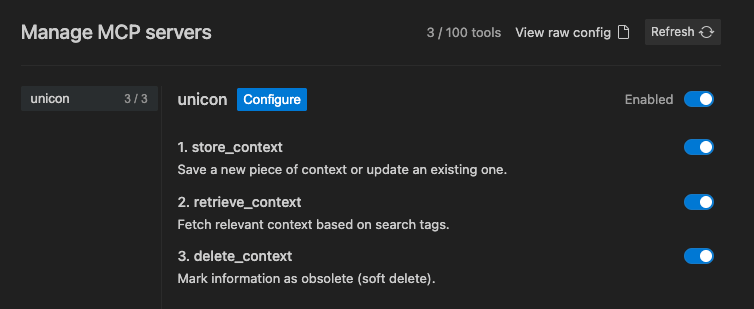
Step 4: Use the Agent
Now for the fun part. You don’t need to write code to invoke the server; you just talk to the agent.
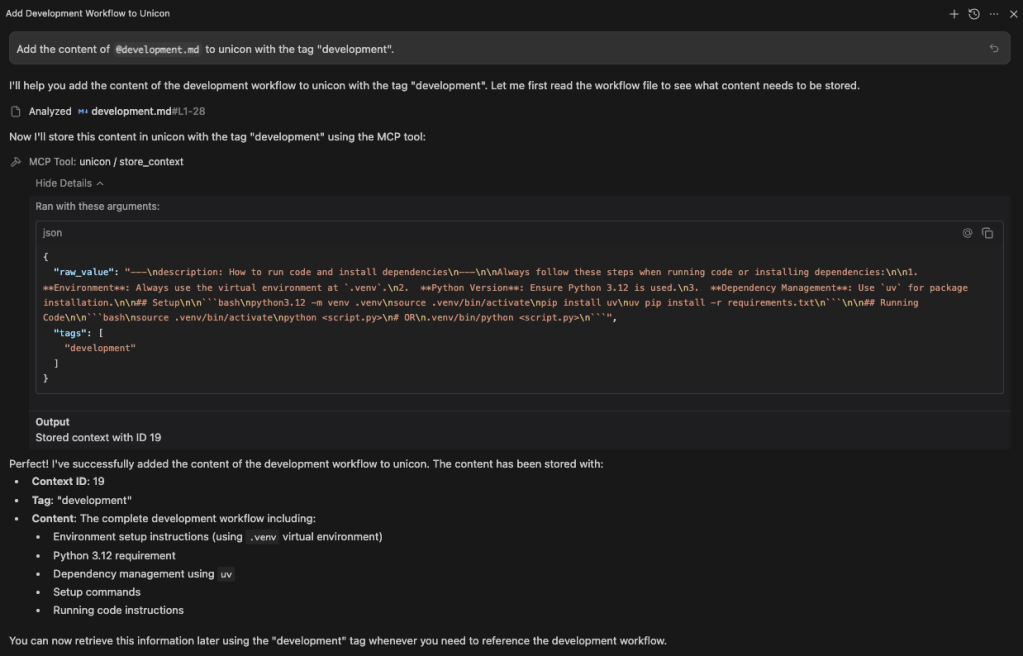
MCP Name: unicon
Store Context
Example Prompt: “Add the content of
@development.mdto unicon with the tag ‘development’”
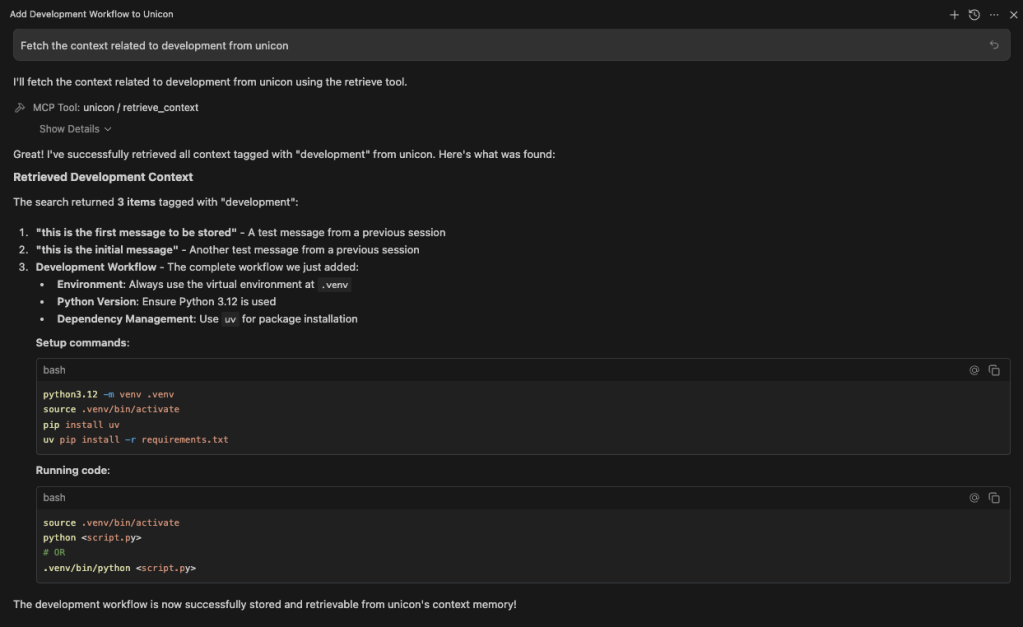
Retrieve Context
Example Prompt: “Fetch the context related to development from unicon”
Conclusion
This setup provides a reliable way to develop and run MCP servers on your local machine.
As a next step, I noticed that robust MCP projects often decouple the service from the database to better handle local server constraints. I plan to apply this architecture to Unicon in future updates.
Subscribe to follow up on this!
 Tech.Zealot
Leave a comment